About Ecommerce
Complete guide to the RedERP Ecommerce module — dashboard, storefront, orders, payments, and recovery.
The Ecommerce module runs your online shop on top of RedERP products, stock, and clients. Shoppers buy on the public storefront; your team manages the catalog, orders, payments, themes, and recovery emails inside the ERP.
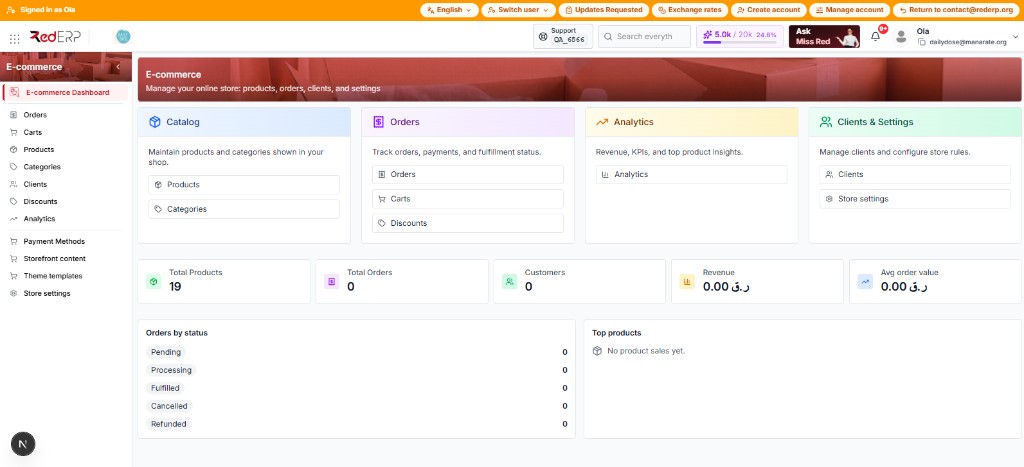
Open E-commerce from the module launcher (grid icon) or the main sidebar. The first screen is the E-commerce Dashboard.
Always on the left
Orders, catalog, clients, discounts, analytics, then payment methods, content, themes, and store settings.
Four coloured cards
Jump to Products, Orders, Carts, Discounts, Analytics, Clients, or Store settings.
Live numbers
Products, orders, customers, revenue, average order value, plus orders by status and top products.
The dashboard lives at /modules/ecommerce. Use it as the home of the shop — not as the storefront itself.
Sidebar
The left menu is split into two groups.
| Menu item | Path | Purpose |
|---|---|---|
| E-commerce Dashboard | /modules/ecommerce | KPIs and shortcuts (this page) |
| Orders | /modules/ecommerce/orders | Fulfil online orders |
| Carts | /modules/ecommerce/carts | Draft and abandoned carts |
| Products | /modules/ecommerce/products | Enable catalog items for the shop |
| Categories | /modules/ecommerce/categories | Shop navigation |
| Clients | /modules/ecommerce/customers | Shopper / CRM clients |
| Discounts | /modules/ecommerce/discounts | Promo codes |
| Analytics | /modules/ecommerce/analytics | Sales KPIs |
| Payment Methods | /modules/ecommerce/payment-methods | Which ERP methods are allowed online |
| Storefront content | /modules/ecommerce/content | Homepage, policies, journal, tags, CSS, insights — see Storefront Content |
| Theme templates | /modules/ecommerce/themes | Activate the layout — see Theme Templates |
| Store settings | /modules/ecommerce/settings | Handle, tax, gateways, shipping, recovery |
The active page has a red marker on the left. Configuration pages sit under the management list.
Quick access
The top row is four shortcut cards. Each card has a short description and one or more links.
| Card | What it is for | Links |
|---|---|---|
| Catalog (blue) | Products and categories shown in the shop | Products, Categories |
| Orders (purple) | Payments, fulfilment, and carts | Orders, Carts, Discounts |
| Analytics (yellow) | Revenue and product insights | Analytics |
| Clients & Settings (green) | Shoppers and store rules | Clients, Store settings |
Click a link — you leave the dashboard and open that page.
Key metrics
The middle row is five KPI tiles. Numbers use the company currency (for example QAR).
| Tile | Meaning |
|---|---|
| Total Products | Products available to the ecommerce catalog |
| Total Orders | Online orders recorded for the store |
| Customers | Clients linked to ecommerce |
| Revenue | Sum of paid / recognised order value |
| Avg order value | Revenue divided by orders (0 when there are no orders) |
A new store can show 0 orders, customers, and revenue even if products already exist. That is normal until the first storefront (or manual) order is placed.
Orders by status
The left block under the KPIs lists five fulfilment buckets: Pending, Processing, Fulfilled, Cancelled, Refunded. Each line shows the count for that status.
These dashboard labels are the API keys. On Orders the same values appear as New, Preparing, and Packed.
Top products
The right block lists best sellers by quantity and revenue. If nothing has sold yet, you see No product sales yet.
This dashboard has no date picker and no Refresh. The tiles show current totals. To filter by period, use Analytics.
Go-live checklist
Activate the module
Turn on E-commerce for the account from the app marketplace if it is not already in the sidebar.
Configure the store
Open Store settings. Set store name and shop handle (Save needs both), plus currency, tax, and logo. See Store Settings.
Turn on a payment
Under Payments (gateways) add at least one Active gateway (for example COD). Then enable matching methods on Payment Methods.
Shipping and catalog
Add a shipping rule or a flat rate. Turn E-commerce Management on for products you sell online and fix stock.
Theme, content, emails
Activate a theme, publish homepage content, and enable store emails (plus cart recovery if you need it).
Place a test order
Buy something on the storefront and confirm the order appears under Orders and on this dashboard.
Important concepts
- Gateways vs payment methods — Stripe / COD credentials live under Store settings → Payments. Enabling a method for checkout is under Payment Methods. You usually need both.
- Stock — Managed separately from the ecommerce product toggle. Out-of-stock items should not sell when negatives are not allowed.
- Orders have three status axes — payment, order handling, and shipment. See Online Orders.