About Sales & Invoicing
What the Sales & Invoicing module covers — the six sales documents and how they chain, payments, reports and settings — with a map of every page in the module.
Sales & Invoicing is where you sell: you quote a customer, confirm the order, deliver the goods, invoice, collect the payment and handle whatever comes back. Every step is a document that can be transferred into the next one, so quantities, prices and taxes are typed once and flow through stock, receivables and reports automatically.

The sales chain
| Document | What it represents | What it changes in RedERP |
|---|---|---|
| Quotation | An offer to a client with a validity date | Nothing until it is transferred; once transferred it is marked Converted |
| Sales Order | A confirmed order, followed through production and shipping | Becomes the source for delivery notes and invoices; tracks its Transfer Status |
| Delivery Note | Goods leaving your location | Full Delivery / Partial Delivery creates the stock-out movements |
| Invoice | The amount the client owes | Posts to the receivable ledger; payments settle it and drive the Payment Status |
| Return Note | Goods a client sends back against a delivery note | Full receive / Partial receive creates the stock-in movements |
| Credit Note | An amount you owe the client | Applied to an invoice, credited to the client wallet or refunded through a payment method |
You do not have to start with a quotation: a sales order or an invoice can be created directly, and an invoice can be built by importing lines from existing quotations or orders.
The module, page by page
The Sales sidebar has five groups. This guide has one page per entry, in the same order.
| Group | Pages | Use it to |
|---|---|---|
| — | Sales Dashboard | Read the KPIs, the monthly sales-and-collections chart and the recent documents of the active financial year |
| Setup | Clients · Locations and Warehouses · Products | Maintain the master data sales documents rely on, import/export it, read statistics |
| Sales Documents | Quotations · Sales Orders · Delivery Notes · Invoices · Return Notes · Credit Notes | Create, edit, transfer, deliver, invoice, collect and refund |
| Payments | Payment Management · Payment Types | Follow every customer payment and define the accepted payment methods |
| Reports | My Reports · Balance Statement · Daily Sales Reports · Sales Reports by Period · Sales & Invoices Reports · Journal Caisse · BL invoicing status · Documents & Payments · Sales by VAT | Analyse sales, balances, cash and VAT; export to PDF, Excel, CSV |
| Sales Settings | Ledger Settings · Summary Display · Digital Signature · Email Autofill · Delivery Apps | Configure ledgers, summary lines, the printed signature, the inbound mailbox and delivery applications |
What every document page offers
All six document pages share the same layout and tools, so once you know one you know them all.
The list page
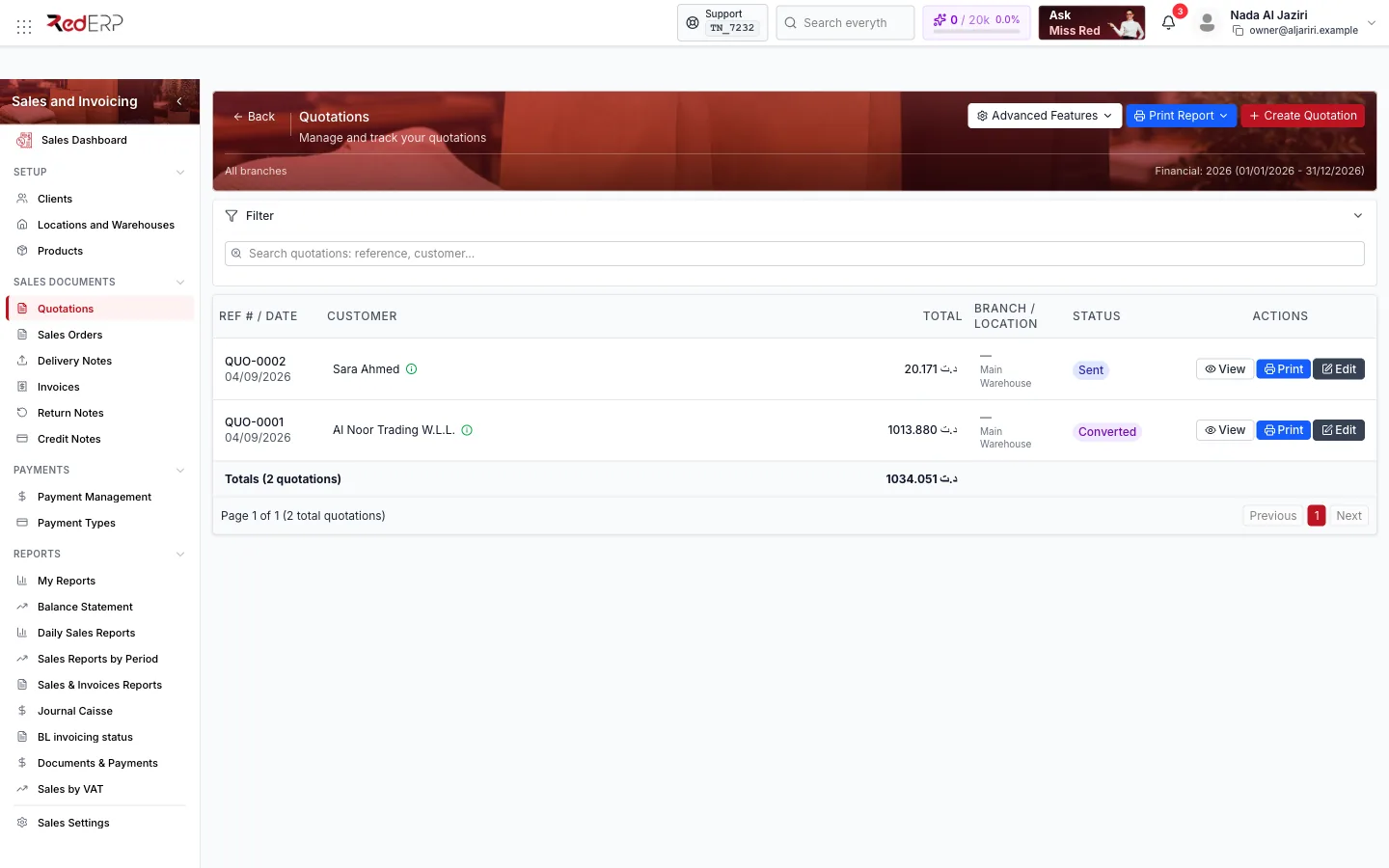
- Create … opens a short drawer: customer, location, branch, ledger and dates. The reference is generated automatically from the numbering configuration. Saving opens the full editor.
- Advanced Features groups the tools of the list: Numbering, Exercice, Statistics, Scan … (create a document from a photo or PDF), Export PDF and Print List (Sales Orders also have Email Autofill and Import).
- Print Report prints the current list with its filters.
- Filter shows the filter panel: search by reference or customer, status, year (financial, fiscal or accounting), branch, location, customer and date range. Filters are remembered per page.
- The table shows the reference and date, the customer, totals, branch/location, status (and, depending on the document, delivery or payment status) and whether the document is Signed. The Actions column has View (side drawer), Print and Edit (full editor).
The editor
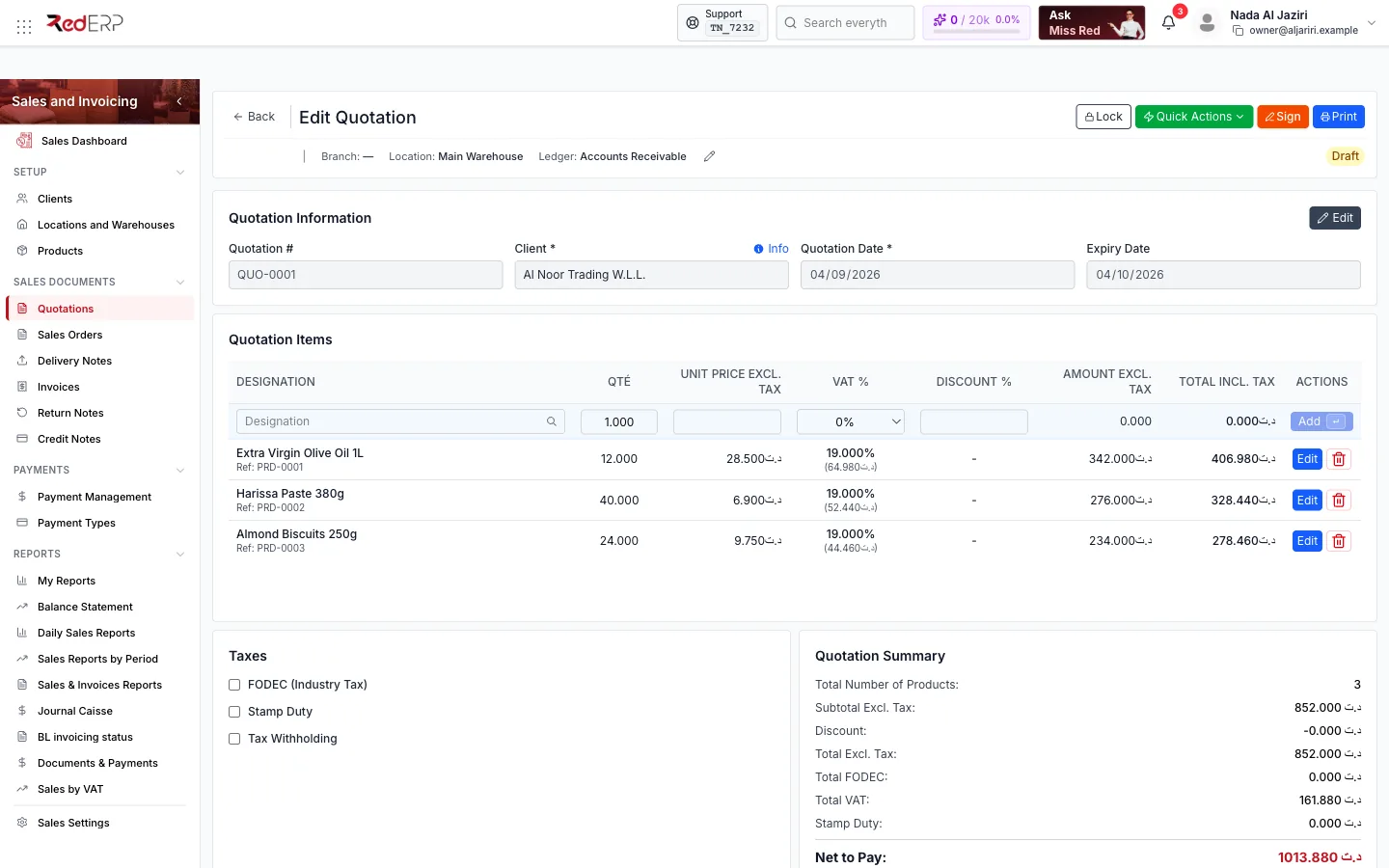
| Area | What you do there |
|---|---|
| Toolbar | Lock / Unlock, Quick Actions (status changes and transfers), Sign, Print, plus document-specific buttons such as Import from, Transfer to Invoice, Payment, Delivery, Stock, Credit note |
| … Information | Reference (locked by default, with a padlock to unlock it), client, dates, location, branch and ledger — Edit to change them |
| … Items | Inline entry row: search a product in Designation, set quantity, unit price, VAT %, Discount %, then Add; existing lines have Edit and delete buttons; toggle HT / TTC to enter prices excluding or including tax |
| Taxes | FODEC (Industry Tax), Stamp Duty and Tax Withholding switches |
| … Summary | Number of products, subtotal, discount, total excl. tax, FODEC, VAT, stamp duty and Net to Pay |
| Notes & Remarks | Internal remarks (never printed) and customer notes (printed) |
| Attachments | Drag and drop PDF, DOC, DOCX, XLS, XLSX up to 10 MB |
| Logs / Other Information | Who created and changed the document, related document references |
| Danger Zone | Delete the document (only when it is unlocked) |
Numbering and exercices
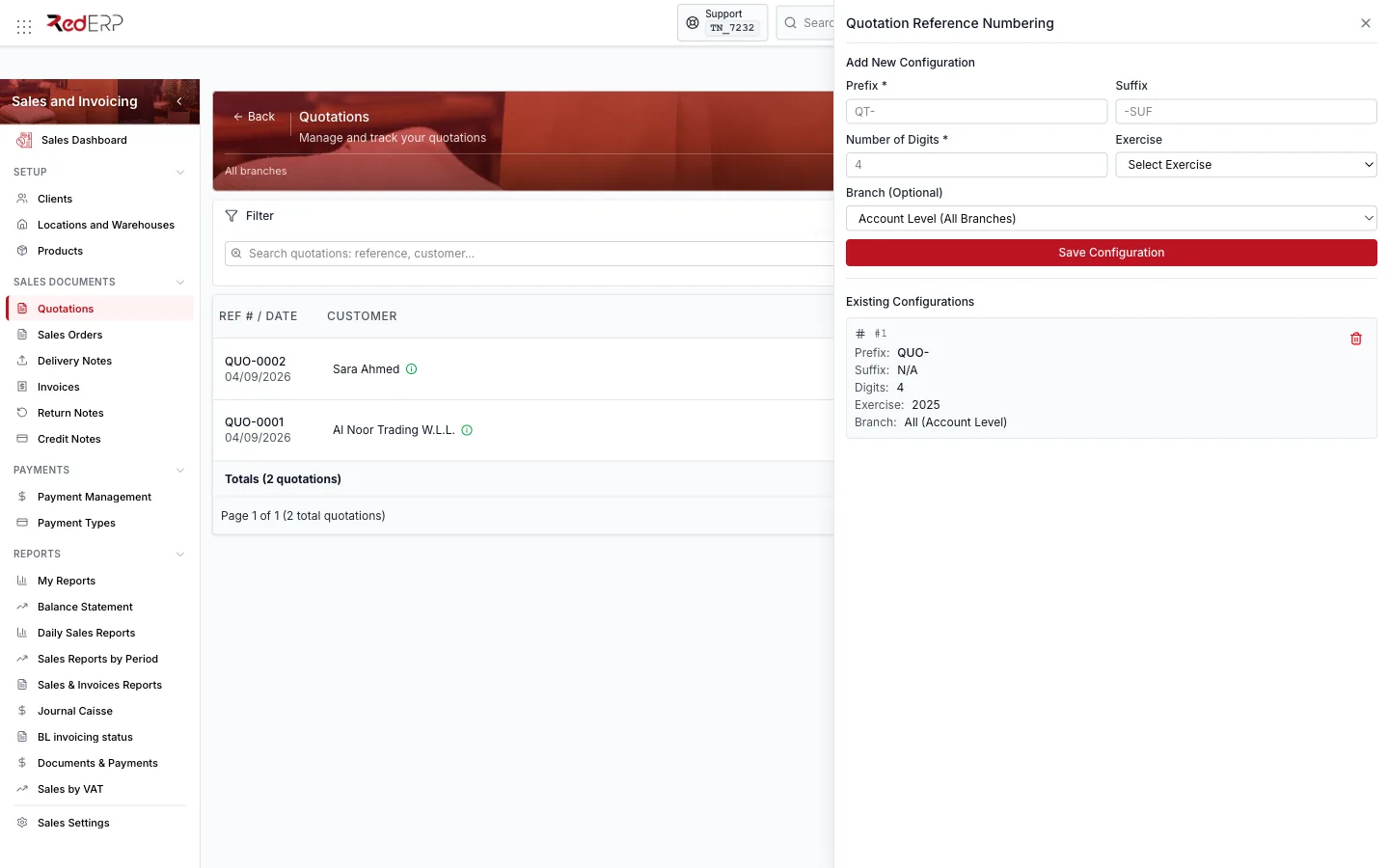
- Numbering defines the reference format per document type and, optionally, per branch: prefix, suffix, number of digits and exercise. Example:
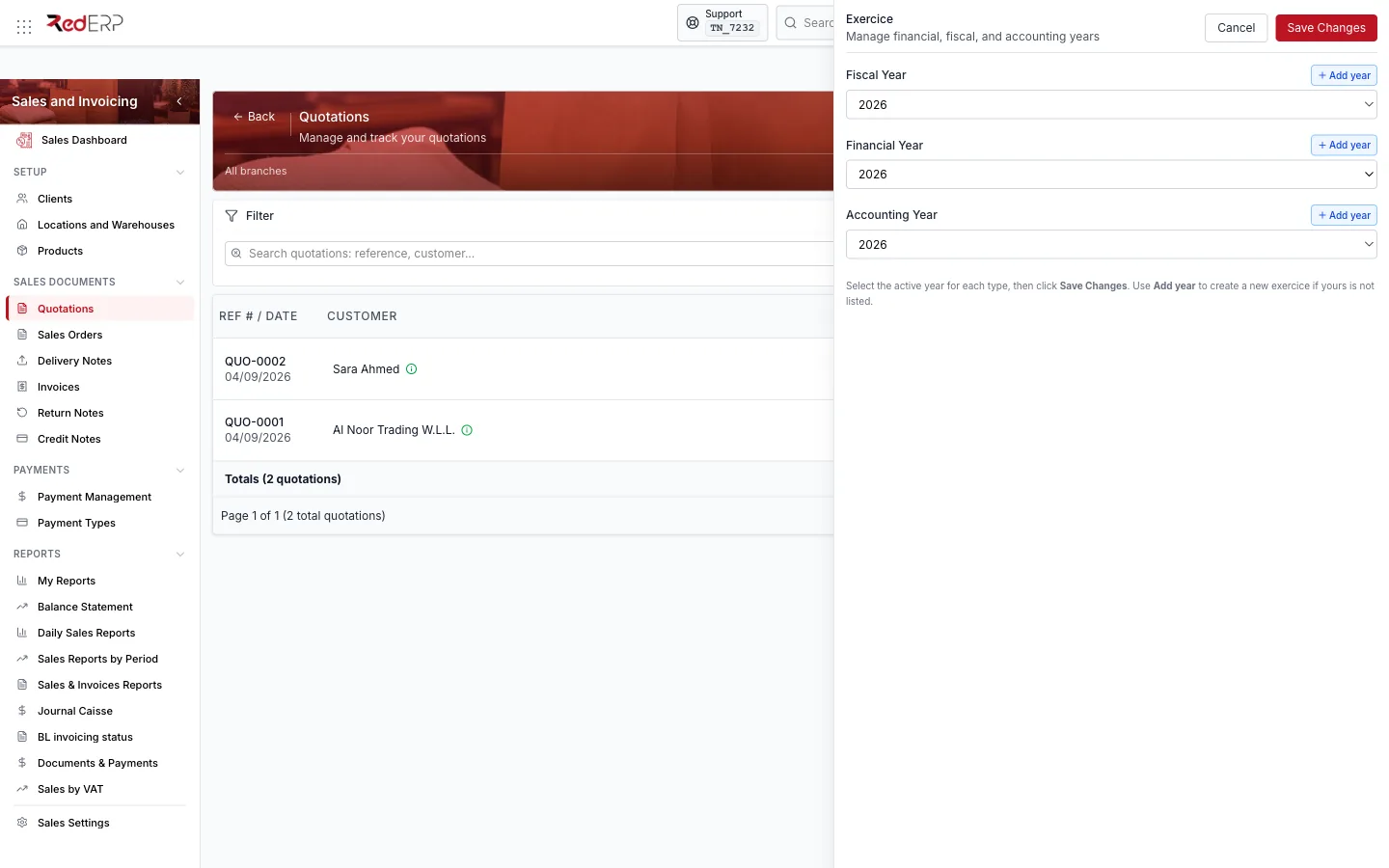
QUO-+ 4 digits givesQUO-0001. Once a document is created its reference is locked; unlock it from the padlock next to the reference if you really need to change it. - Exercice is the financial, fiscal and accounting year documents are recorded in. New documents are created under the active years; if the active year is not the current one the create drawer warns you (Active financial year is 2025 — not 2026) and offers Fix exercice, which opens the Exercice drawer where you select or Add year.
Locking, signing, printing
- Lock freezes a document: no line, amount or status change until it is unlocked. Locking asks for a reason that is kept in the logs.
- Sign marks the document as signed for printing and records; the list shows a check in the Signed column. The image used is configured in Digital Signature.
- Print opens the print layout of the document; the list's Export PDF and Print List produce the whole filtered list.
Taxes
| Tax | Rule |
|---|---|
| VAT | Rate per line, taken from the product's default sales tax rate (for example VAT 19%) and editable on the line |
| Discount | Percentage per line, applied before VAT |
| FODEC (Industry Tax) | Optional industry tax on the total excluding tax; the rate is resolved per product |
| Stamp Duty | Fixed amount per document, defined in your company settings (shown as Fixed 1.000 in the examples) |
| Tax Withholding | Deducted from the net to pay when enabled; the rate comes from the invoice, otherwise from the client category, otherwise from the client |
Which of these lines appear in the summary is controlled in Summary Display.
Payments in short
Payments are recorded from an invoice, a sales order or a delivery note (Payment → Add Payment) or centrally from Payment Management. Each payment has an amount, a Payment Method (defined in Payment Types), a status, a ledger and an optional treasury account that receives the movement. Bank and cheque methods ask for the instrument details (reference number, bank name). The document's Payment Status moves from Pending to Partially Paid to Paid.
Getting started
Check the setup
Make sure your clients and products exist (Setup), that the products have a sales price and a Default Tax Rate (Sales), and that stock is available in the location you sell from.
Define payment types and the exercice
Create at least one method in Payment Types (Cash, Bank Transfer, Card…) and confirm the active financial year in the Exercice drawer of any list page.
Run your first sale
Create a quotation, approve it and Transfer to Sales Order; from the order Transfer to Delivery Note, mark it delivered, then Transfer to Invoice and Add Payment. Each page of this guide walks through the details.
Permissions and plan
Sales pages are controlled by the Sales permission area (read, create, update, delete) assigned to roles under Settings → Users. Import and export need the create and read permissions respectively. The module is included in every RedERP plan; the number of modules and AI tokens depends on your subscription.
Related
- Sales Documents — the six document pages
- Payments · Reports · Sales Settings
- Procurement — the mirror-image purchasing chain
- Data Management — clients, products and locations in depth